
The Toolbar
The XenCenter® toolbar provides quick access to some of the most common XenCenter tasks, for example, to connect to new servers and create VMs.

Using the Back and Forward buttons on the Toolbar
The Back and Forward buttons on the toolbar work like Back and Forward buttons on a browser and allow you to quickly move between views of your resources.
-
To display your previous resource view, select Back.
-
To display the next resource view (if you have used Back), select Forward.
-
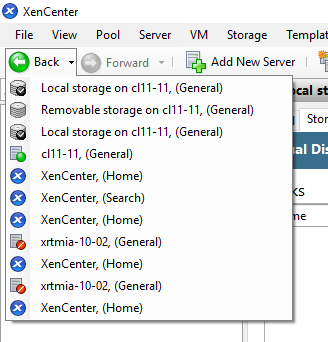
To display one of the resource views you used in this session, select the down arrow next to the Back or Forward buttons, and then select the view from the list.
Showing and hiding the Toolbar
The XenCenter window displays the toolbar by default. However, you can hide the toolbar, for example, if you need to make more space in the XenCenter window for the console display. To hide the toolbar, do one of the following:
-
Right-click anywhere on the toolbar and, on the shortcut menu, select to remove the Show Toolbar check mark.
-
On the View menu, select to remove the Toolbar check mark.
Note:
Any changes you make to your XenCenter toolbar visibility are persistent and are saved from session to session.